Settling up and confirming payments
Record that you've paid, add a photo of the transfer, scan a bank QR code, and confirm money you've received.
Paying back takes two steps: the payer records I've paid, and the person paid taps Yes, received. Balances change once both have happened.
When you pay
- Open the Balances tab and find your line under Who should pay whom.
- If they've saved a bank account, tap QR code and scan it in your banking app. The amount and message are filled in. Not yet? Tap Ask to add to ask them, or pay another way.
- Once the money is sent, tap I've paid under the list.
- Check the amount and Who you paid. To be safe, add a photo of the transfer.
- Tap Save.
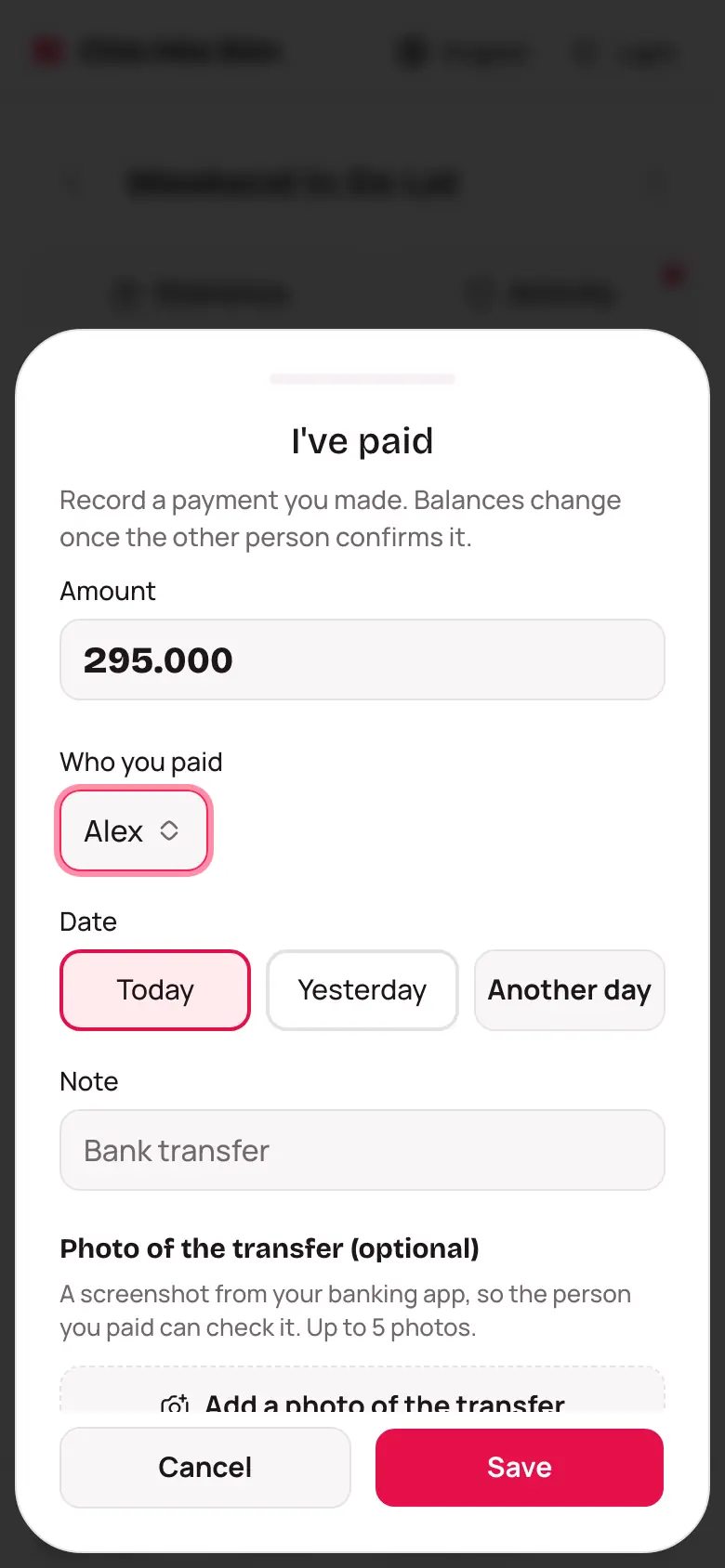
If there is no place to add a transfer photo, the group lead has turned photos off in the group settings; you can still save the transfer as usual.
The message inside every QR code starts with a CHD code, for example CHD7K3F9Q Vy tra Binh. Opening the QR again for the same payment gives the same code. When you pay by QR, tap I've paid on the QR screen itself so the recorded transfer keeps that code; to match it against your bank statement, look for the CHD code in the message.
The payment shows as waiting until the other person confirms it.
When you get paid
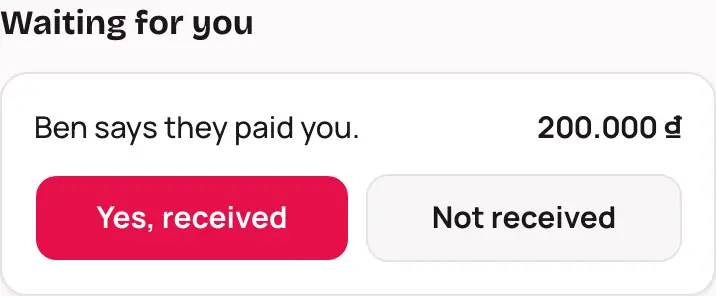
- You'll get a notification, or see Waiting for you on the Balances tab.
- Check your bank account, and the transfer photo if there is one.
- Money arrived? Tap Yes, received. It hasn't? Tap Not received.
Two or more waiting? Tick Select all and tap Confirm selected.
Let people pay you by QR
Go to Profile, open the Bank tab, and tap Add a bank account. Anyone who owes you will then see a QR code button. See Your account.