Editing, deleting and undoing expenses
Fix an expense entered wrong, delete one that shouldn't be there, undo a slip, and see the edit history.
Edit an expense
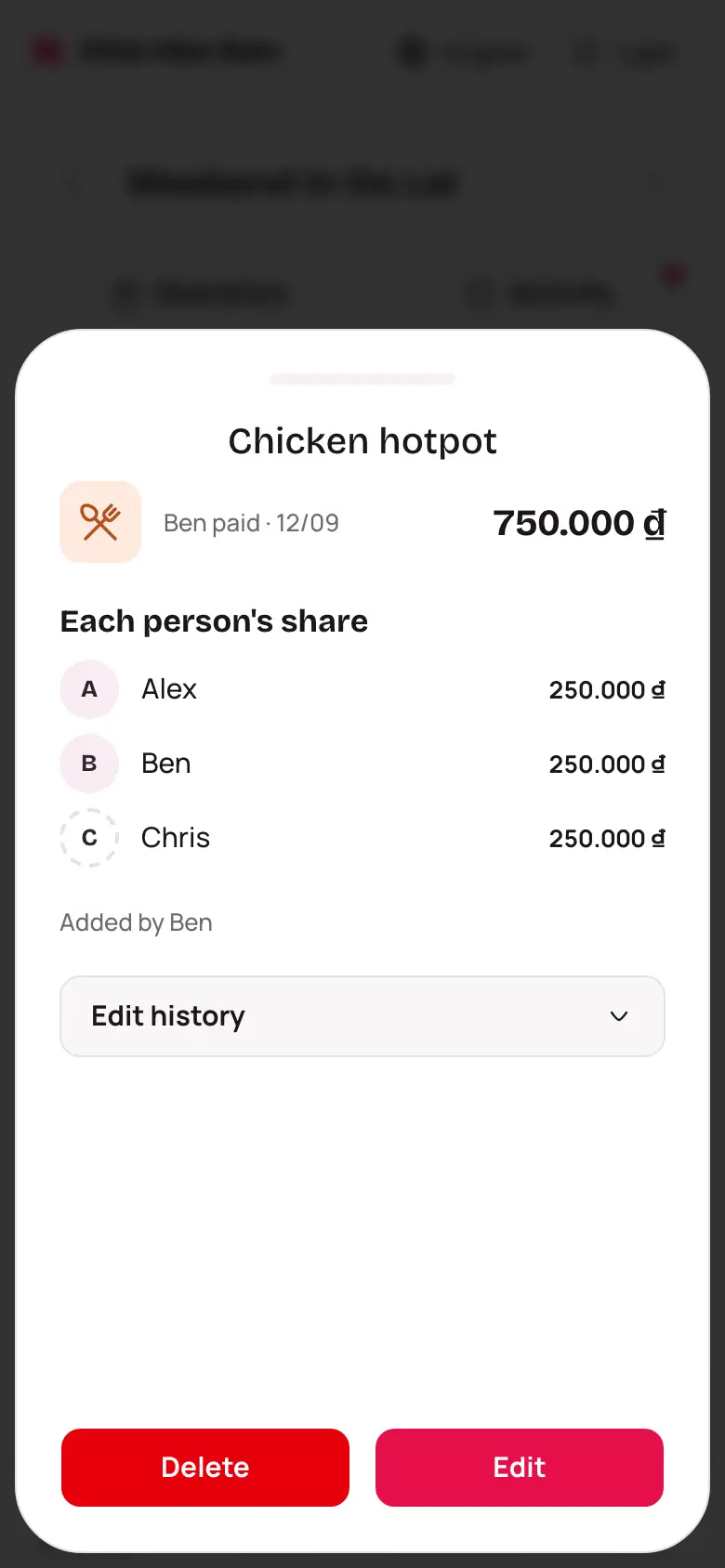
- On the Book tab, tap the expense.
- Tap Edit.
- Change the amount, name, who paid or the split.
- Tap Save.
If someone else saved a change to the same expense at the same moment, the app asks whether to open their version or keep yours.
Delete an expense
- Tap the expense.
- Tap Delete.
The app doesn't ask "are you sure?". Instead, Expense deleted appears at the bottom with an Undo button for a few seconds.
Undo
Deleted the wrong one? Tap Undo on that message. The expense comes back exactly as it was, and so do the balances.
See the edit history
Open the expense and tap Edit history. Each line shows who changed what, when, and from what to what. For every change in the group, see Activity.