Adding an expense
Write down who paid how much for what. The app suggests a category and splits it equally.
Record an expense
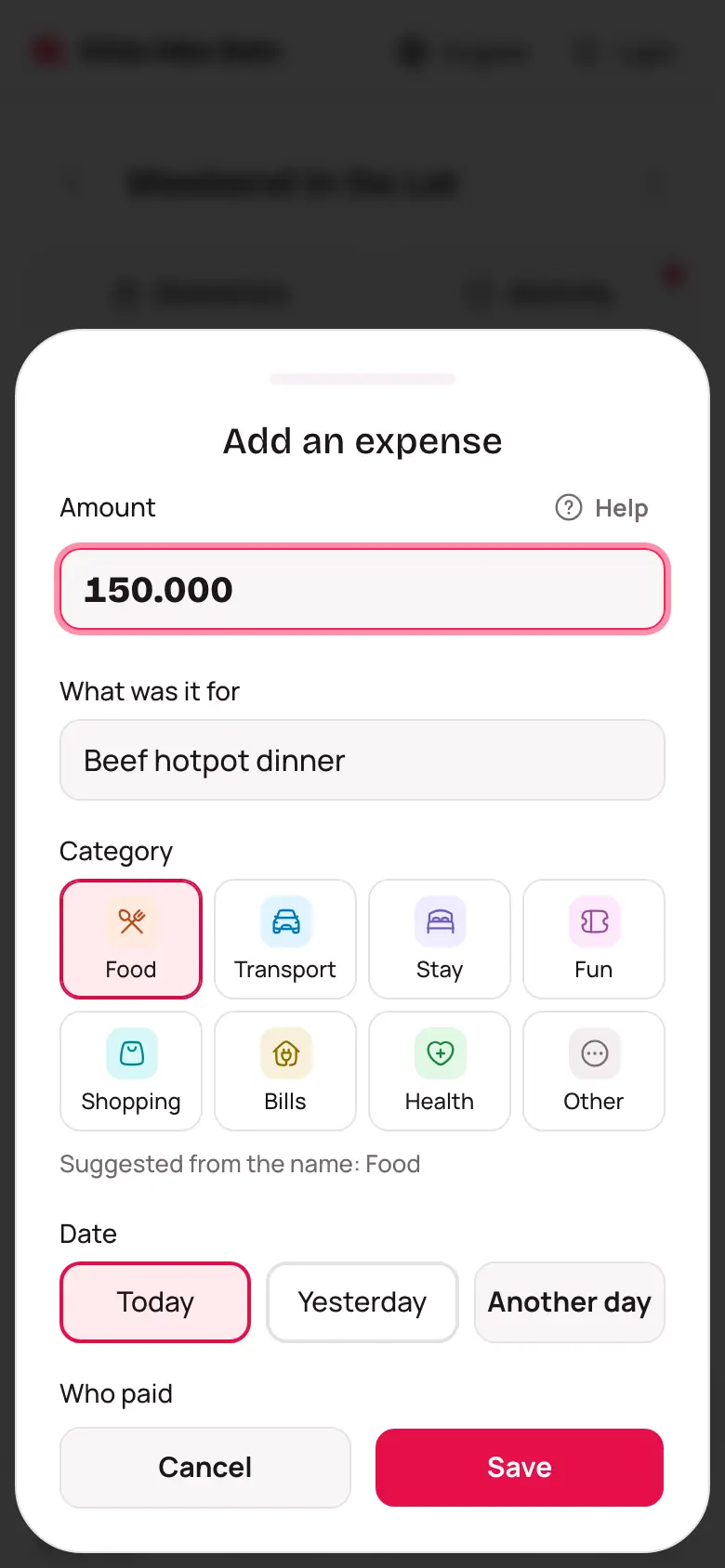
- Open the group and tap Add an expense.
- Type the Amount. Shorthand works: 150k is 150,000 ₫ and 1tr25 is 1,250,000 ₫.
- Fill in What was it for, like "Hotpot dinner".
- Check the Category. The app suggests one from the name, and you can change it.
- Choose Who paid. It starts as you.
- Tap Save.
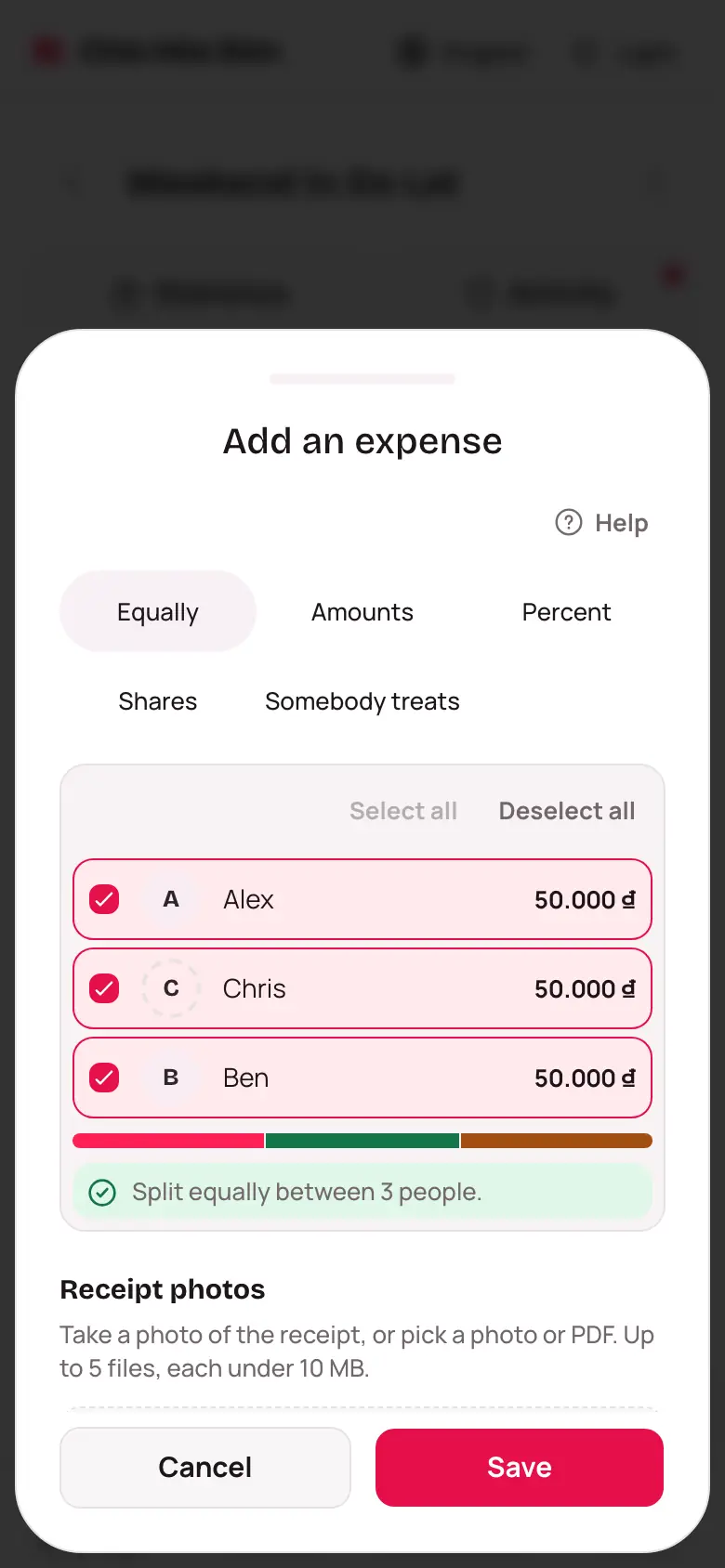
By default the app splits it Equally between everyone in the group. If someone wasn't part of it, untick their name under How to split it.
Pick the date
Expenses are dated Today. For yesterday tap Yesterday; for anything earlier tap Another day and pick it on the calendar.
Attach a receipt photo
At the bottom of the form, tap Add a receipt photo and take or choose a picture. Everyone in the group can see it when they open the expense.
No button to add a photo? The group lead may have turned off Allow receipt and transfer photos in the group settings. Photos added before stay visible.
Not everyone paid the same share?
Someone ordered more, or someone's treating? See Splitting unevenly.