Notifications
Read notifications in the app, get them by email or on your phone, and choose which kinds you want.
Read your notifications
Tap Notifications in the bottom bar (on a computer, it's in the left column). The number shows how many are unread. Tap Mark all as read to clear them.
Every notification always appears in the app, even if email or phone notifications are off.
Email does not announce things at once. If something is still unopened after a day or two, and you still have to act on it, you get one reminder — and never more than one email a day, however much is waiting.
Choose what you get
- Go to Profile, open the Notifications tab and find Notifications.
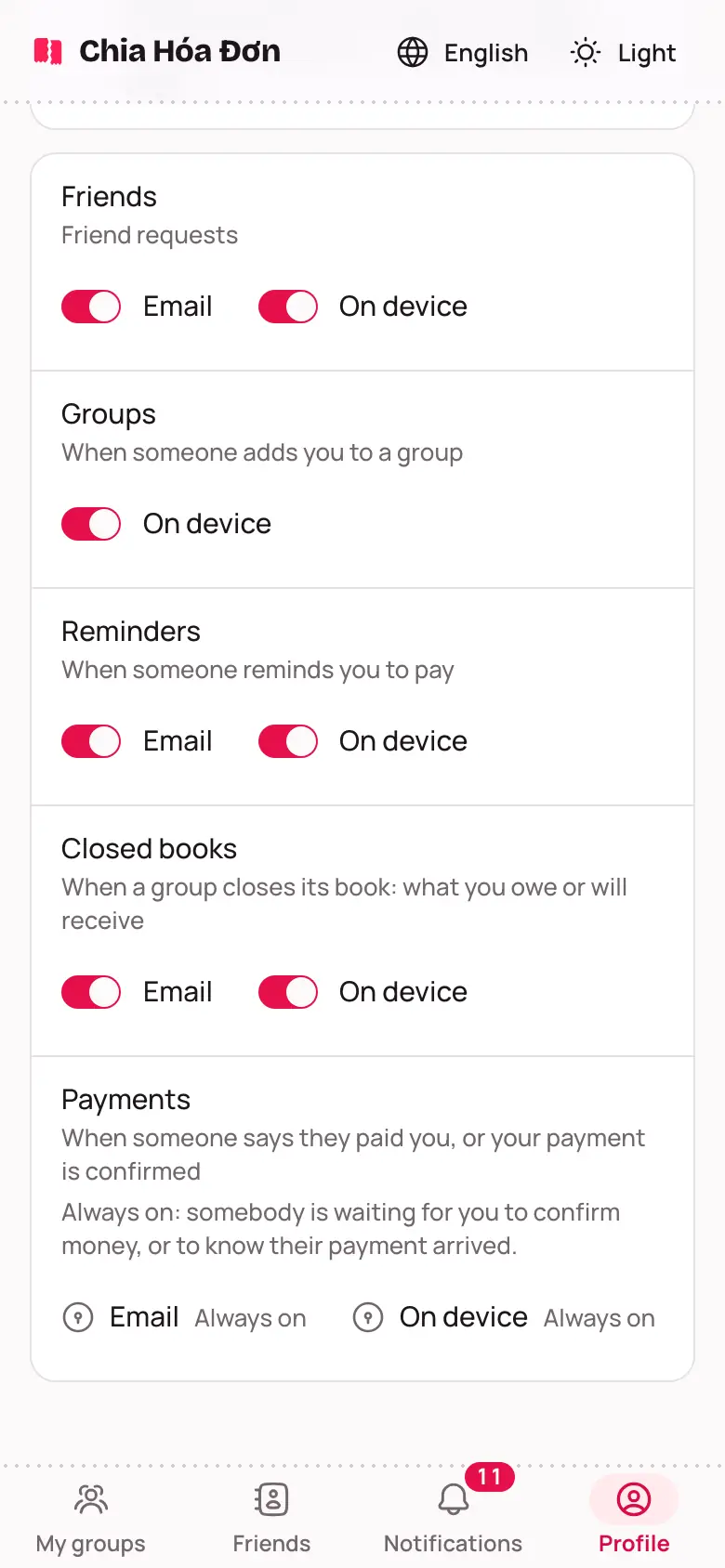
- Each kind (Friends, Groups, Reminders, Closed books, Payments, Updates) has an Email switch, plus On device where phone notifications are available.
- Switch them on or off. The change is saved straight away.
Turn on phone notifications
- On the Notifications tab in Profile, find the Notifications on this device card.
- Tap Turn on notifications.
- When your browser asks, choose Allow.
On an iPhone, add the app to your home screen first. See Getting started.
Blocked them by mistake? Tap the lock icon next to the address bar, open Notifications and choose Allow.