Closing and exporting the book
Close the book when the trip is over, then send everyone a summary image or download an Excel or CSV file.
Close the book
When the trip is over, the group lead closes the book so nobody adds or changes expenses any more.
- Open the group and tap the ⋯ button next to its name.
- Choose Close the book.
- Read the note, then tap Close the book again to confirm.
Paying back still works in a closed book. The group shows Book closed on My groups.
Save & share the book
Anyone in the group can export it.
- Tap the ⋯ button next to the group's name and choose Save & share book.
- Pick one of the options below.
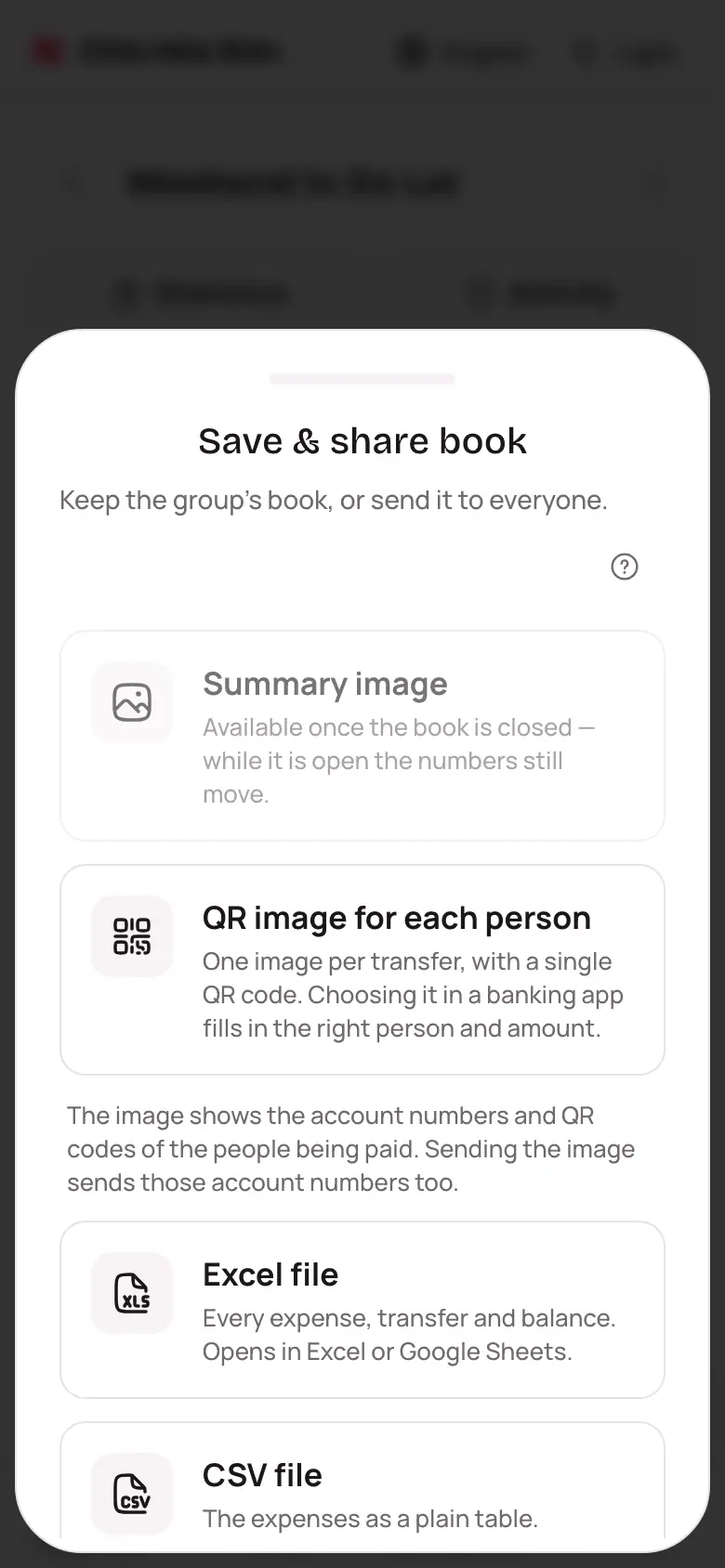
- Summary image: one tidy picture with the total spent, each person and who pays whom. Tap Share image to send it straight to Zalo, or Download image to keep it. When there's only one transfer, it includes the bank QR code too.
- QR image for each person: one image per transfer with a single QR code, so choosing it in a banking app fills in the right person and amount. Tap Share (or Download image) on each one to send it to the person who pays, or Share all. Only shown when someone being paid has saved a bank account.
- Excel file: every expense, transfer and balance, each on its own sheet.
- CSV file: the expenses as a plain table.
You'll also find Save & share book at the bottom of the Balances tab, and on the banner of a closed book.